



Xavier Claessens
March 18, 2021
Share this post:


Reading time:
Over the past few months, I've been working on a side project to improve Meson sub-project support. The best stress test is to build projects on Windows, without msys2, because it has no dependencies or tools installed (e.g. pkg-config). Meson has to build everything itself from scratch.
Here are step-by-step instructions, starting from a fresh Windows 10 installation, on how to run a gtk4-demo application.
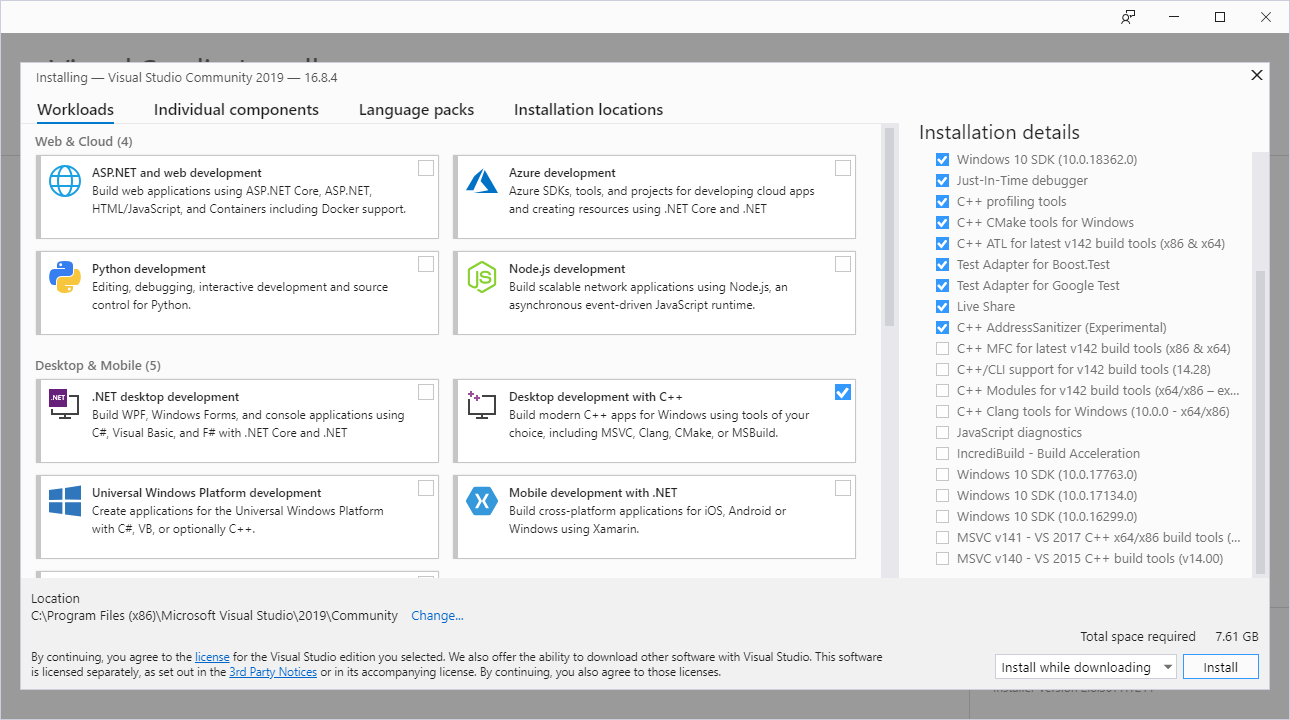
Download from https://visualstudio.microsoft.com/vs/community. Make sure to check the box "Desktop development with C++".
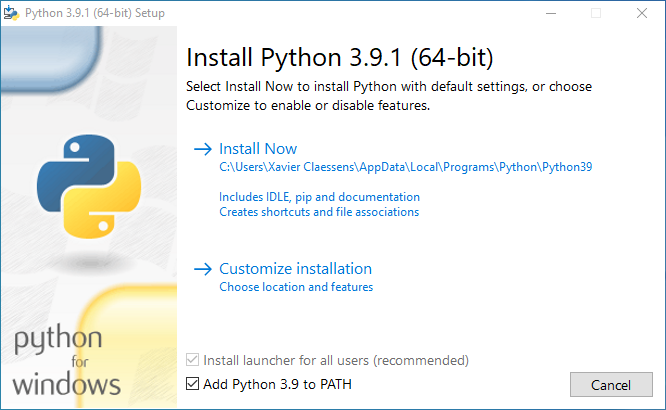
Download from https://www.python.org/downloads. Make sure to check the box "Add python to PATH".
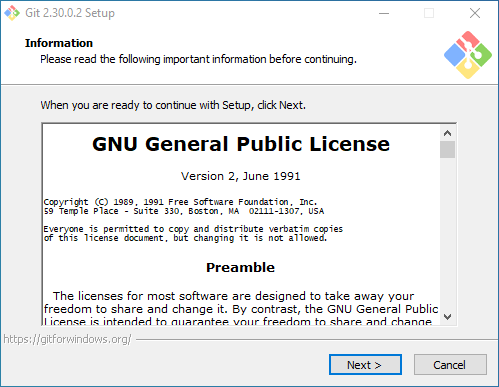
Download from https://gitforwindows.org. It asks many questions, however the default is always good enough, so next, next, next...
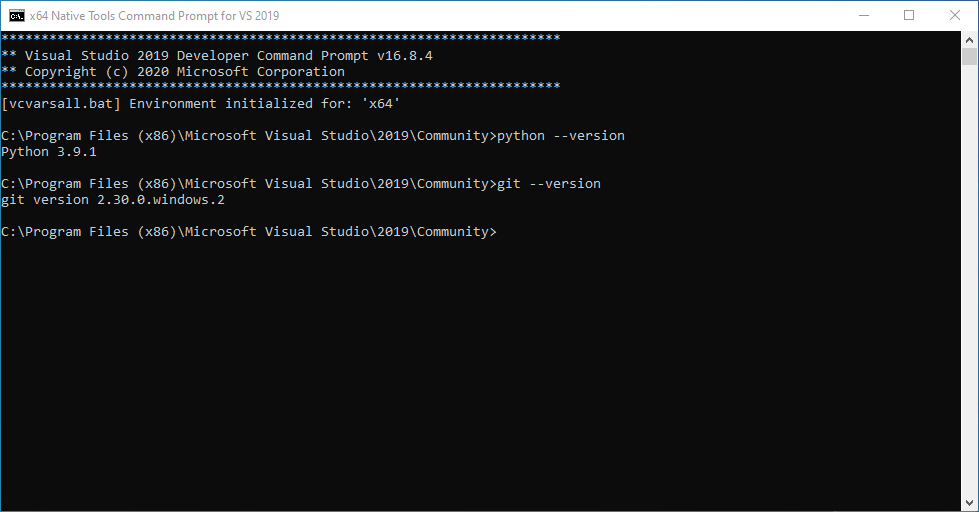
From the Windows start menu, search for x64 Native Tools Command Prompt for VS 2019. That will open a terminal configured to use MSVC x64 tools.
First let's create a directory where we'll fetch the source code:
mkdir C:\src
cd C:\src
Let's also configure git:
git config --global user.email "xavier.claessens@collabora.com"
git config --global user.name "Xavier Claessens"
Installing the latest release of Meson (requires >=0.57.0) can be done with a simple command:
C:\src>pip install meson
Fetch gtk from git:
C:\src>git clone https://gitlab.gnome.org/GNOME/gtk.git
C:\src>cd gtk
At the time of writing !3135 is not yet merged, so we need to use my branch:
(Update March 22: This has now been merged so my branch is no longer needed.)
C:\src\gtk>git fetch https://gitlab.gnome.org/xclaesse/gtk.git meson-install-script
C:\src\gtk>git checkout -b meson-install-script FETCH_HEAD
During the GTK4 configuration, Meson will download and configure all dependencies. Great efforts have been made across all dependencies to make them work out of the box on Windows.
C:\src\gtk>meson setup build --prefix C:/gnome
C:\src\gtk>meson compile -C build
C:\src\gtk>meson install -C build
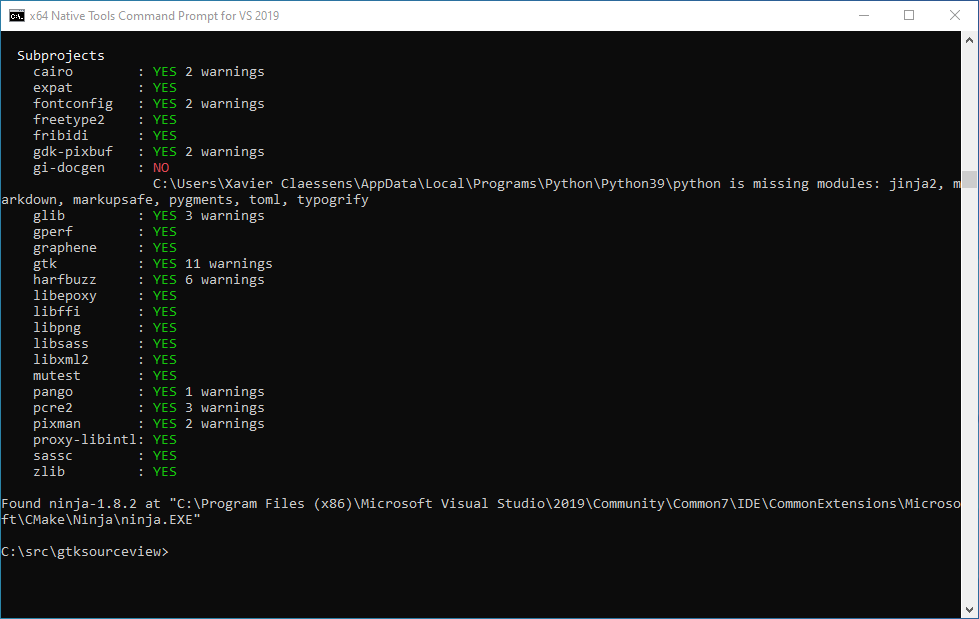
That's all, you can now run demo applications!
C:\src\gtk>C:\gnome\bin\gtk4-demo.exe
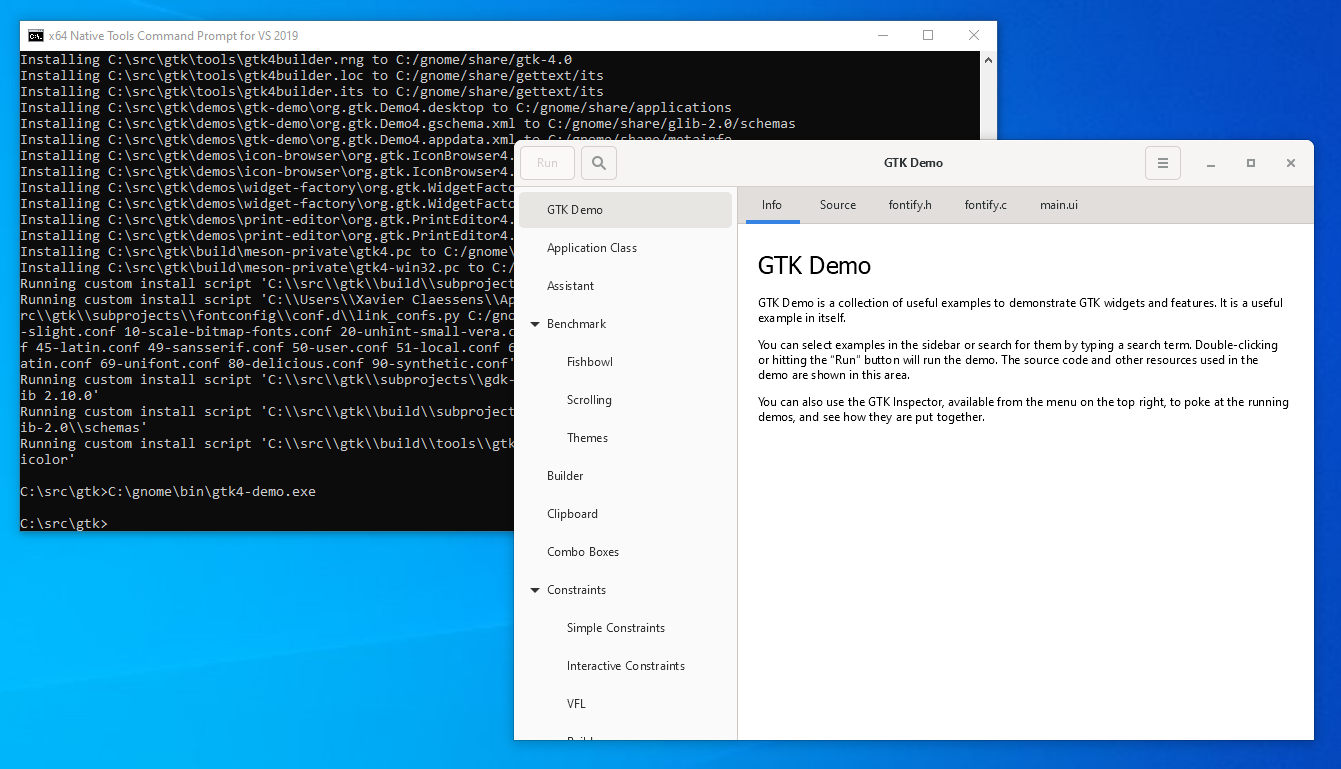
It works out of the box on my VirtualBox machine, however on my physical PC with an intel GPU, I get a crash at startup:
Unhandled exception at 0x5211345E (ig4icd32.dll) in gtk4-demo.exe: 0xC0000005: Access violation reading location 0x00000050
This can be worked around by using cairo rendering:
C:\src\gtk>set GSK_RENDERER=cairo
C:\src\gtk>C:\gnome\bin\gtk4-demo.exe
Since this is a complete build using MSVC, it is also fully debuggable.
If you break execution, or hit a crash, it will open the source code and you can debug step by step, see the value of any variable, whether it is in gtk or in any of its dependencies.
 |
| Debugging in Visual Studio. |
Here's a list of some of the items I would like to eventually look into:
As usual, if you have any questions about GTK4 or GStreamer on Windows, or any other platform, please contact us!
07/07/2026
AI development is shifting from implementing models from scratch to composing powerful capabilities via APIs, enabling developers to integrate…
26/05/2026
New upstream BlueZ documentation helps simplify Bluetooth qualification for Linux-based products by mapping supported profiles, test requirements,…
14/05/2026
See how Tyr moves beyond MCU firmware boot to build the group, queue, VM, submission, and completion paths needed to run real Vulkan workloads…
07/05/2026
A complete breakdown of Mesa’s NIR compiler detailing how it optimizes shader memory access with SSA promotion, deref analysis, copy propagation,…
05/05/2026
Collabora brought Bluetooth Auracast broadcasting to MediaTek Genio 700 for Embedded World 2026. Here's the complete, fully Open Source…
22/04/2026
Using our XR expertise, Collabora created a standalone XR experience for our 1% for the Planet partner, SOMAR, to showcase the direct impact…
Whether writing a line of code or shaping a longer-term strategic software development plan, we'll help you navigate the ever-evolving world of Open Source.


 한국어 버전의 Collabora.com 보기
 Acesse Collabora.com em Português